Getting Started
Linking a Minecraft account
Connect a Microsoft-linked Minecraft account to AutoAFK.
From your dashboard, open the Accounts panel and choose Add Account. This is where every Minecraft account you link will show up, so you can add as many as your plan allows.
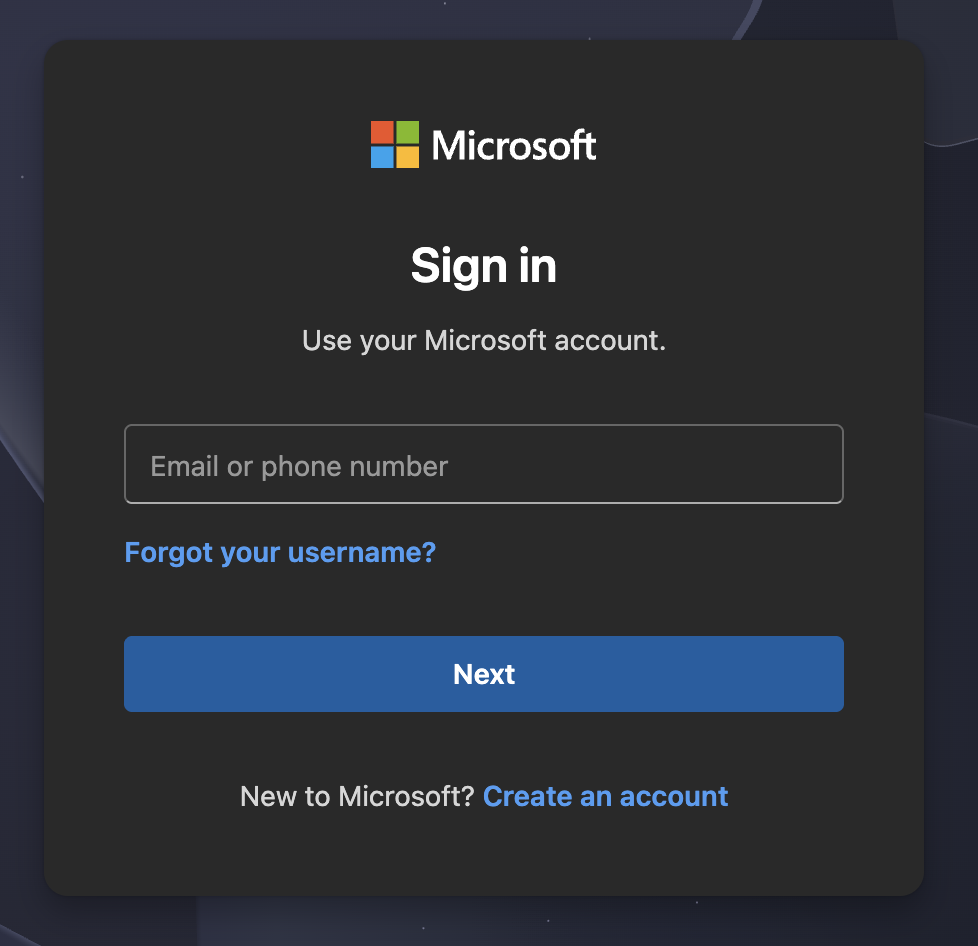
You'll be sent to Microsoft's own sign-in page, sign in with whichever Microsoft account is tied to the Minecraft profile you want to AFK. This is Microsoft's official OAuth flow running on microsoft.com, not a form on AutoAFK, so we never see or store your Microsoft password.
Once you approve the connection, you'll be redirected back to your dashboard and the account will appear in your Accounts list within a few seconds, ready to start.
How your credentials are stored
After linking, we store an encrypted refresh token so your bot can reconnect automatically without asking you to sign in again. The token is encrypted at rest and only decrypted in memory when your bot needs to authenticate.
Removing a linked account
If you no longer want AutoAFK to have access, remove the account from the Accounts panel. This deletes the stored refresh token immediately, you can also revoke access from your Microsoft account's security settings at any time.
